Git integration lets you manage version control for a model directly from Quest Data Modeler. After you connect a model to a Git repository, you can create and switch branches, commit and push changes, sync with the remote, merge branches, create pull requests, and monitor pipeline validations without leaving the modeling workspace.
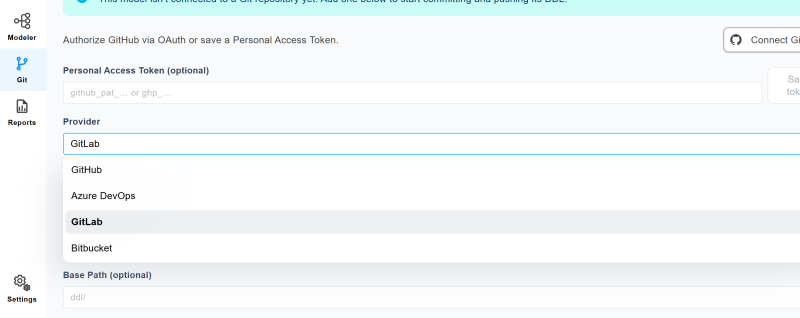
Quest Data Modeler supports GitHub, Azure DevOps, GitLab, and Bitbucket. You can authenticate to any of these providers with a personal access token, and the connection and Git operations work the same way for every provider.
Prerequisites
-
Ensure that you have access to a Git repository on a supported provider such as GitHub, Azure DevOps, GitLab, or Bitbucket.
-
Save the model to Quest erwin Mart Portal.
-
Verify that you have permission to create branches and pull requests in the repository.
This topic demonstrates the GitHub connection and configuration process by using the Lead-to-Cash model. The same steps apply to the other supported providers. It outlines a repeatable, team-ready workflow for versioning the model's DDL, covering connection, branching, commits, reviews, merges, and validation gates.
Understand the Git Interface
Select  to view and use the Git Configuration tab, which contains three tabs: Repositories, Credentials, and Audit Log.
When you open a model, two icons are available:
-
A Git icon in the header bar provides access to Git quick actions through a drop-down menu.
-
A Git icon in the left navigation bar provides access to all Git features. Selecting
 opens the Git page. To return to your model, select
  .
.
You can stay connected to more than one provider at a time. Each connection is specific to your user. Your stored credentials are retained, so you can switch between connected providers without reentering them.
For more information about the Git Configuration tab, refer to the Configure Git topic.
Authorize and Set Up Git
To authorize and set up Git, follow these steps:
-
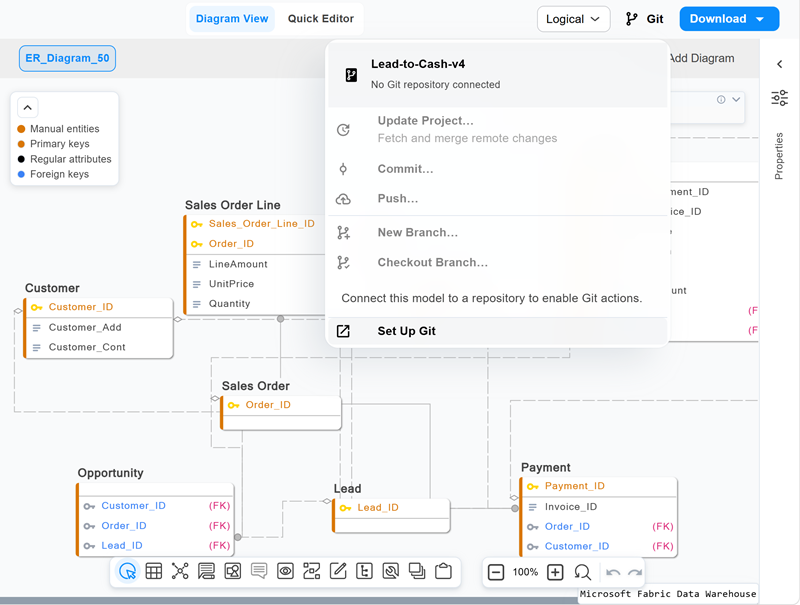
Open the model, and then select Git on the header bar.
The Git menu opens and displays No Git repository connected, with the available actions dimmed until a repository is connected.
-
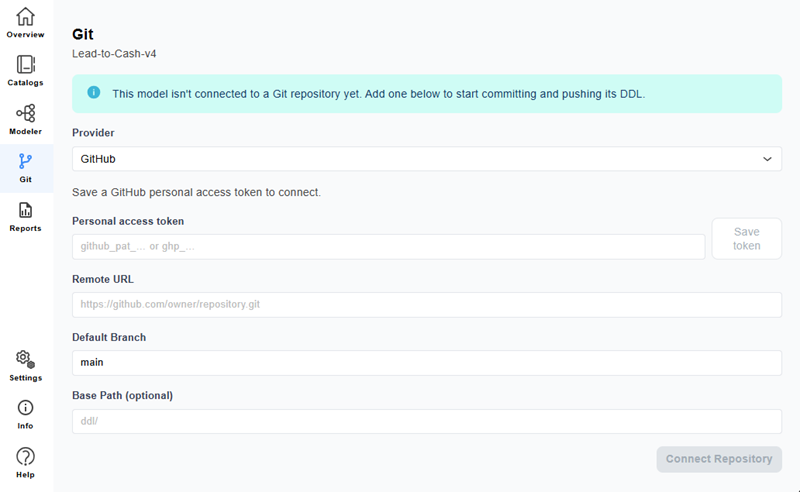
Select Set Up Git or
 from the left navigation bar.
The Git page opens and displays the connection fields.
-
From the Provider list, select your provider. For example, GitHub.
-
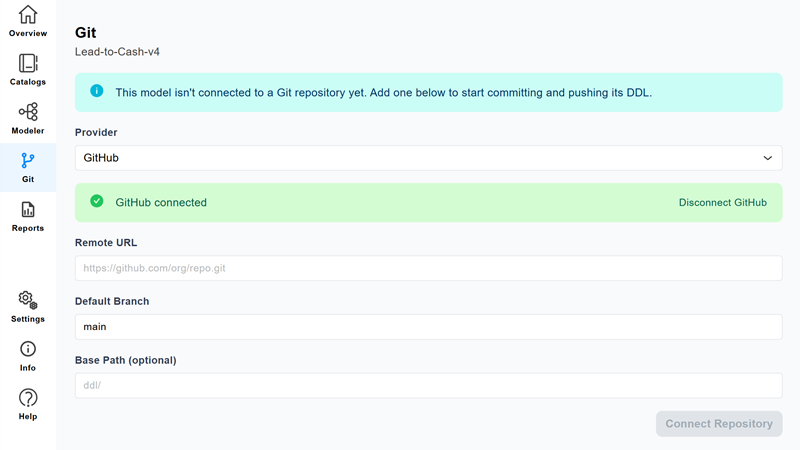
Enter your personal access token, and then select Save token.
Quest Data Modeler displays a green GitHub connected confirmation.
-
Enter the Remote URL of your repository.
-
Confirm the Default Branch (for example, main), optionally enter a base path, and then select Connect Repository.
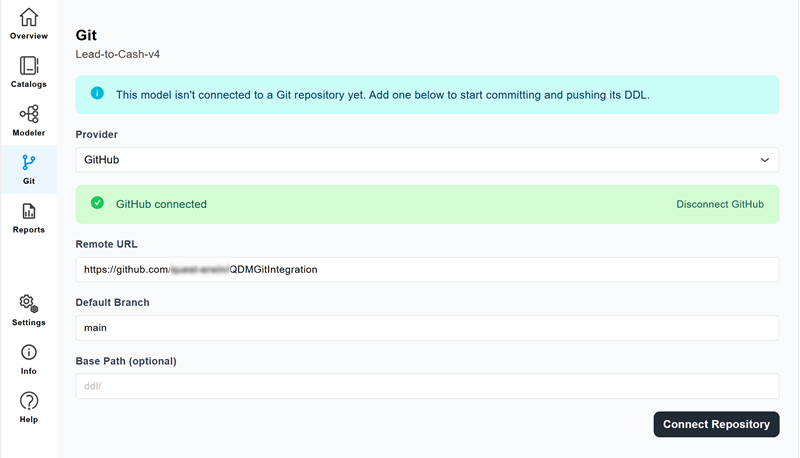
Note: You can also configure Git from the Git Configuration tab in Settings.
The repository is connected.
If the connection fails, Quest Data Modeler displays a failed status and the full error message, including authorization errors, so you can identify the cause.
Establish a Workflow for Branching and Committing
When the connection is successful, the Repository Details page displays the Ready status, and you can create a working branch for your changes.
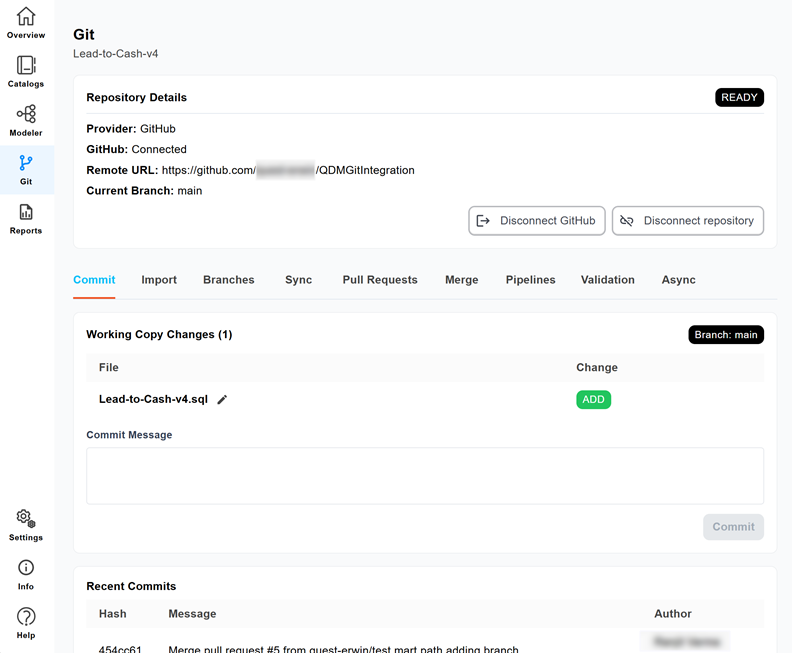
To create a branch, follow these steps:
-
Do one of the following:
-
Select
 to return to the Modeler view, and follow these steps:
-
From Git quick actions, select New Branch.
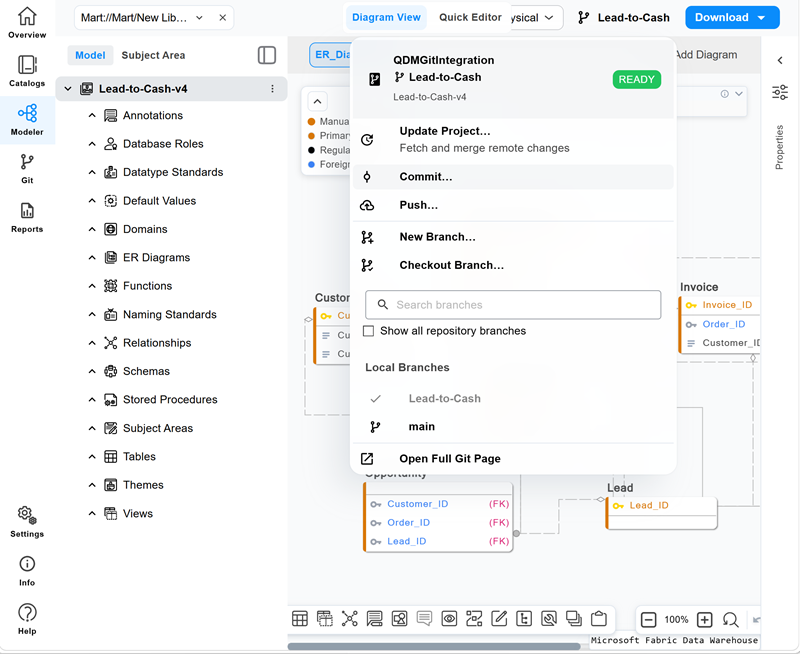
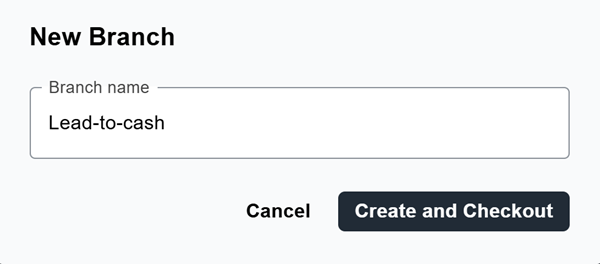
The New Branch dialog appears.
-
Enter the branch name, and then select Create and Checkout.
-
-
From the Git main page, select the Branches tab, enter a branch name, and then select Create Branch.
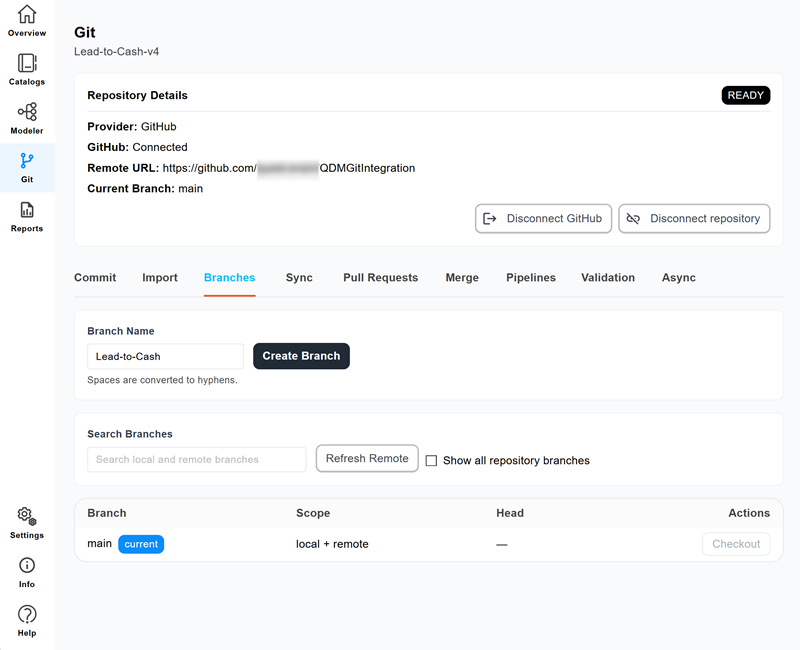
Quest Data Modeler creates and checks out the branch, and the current branch name is updated in the Repository Details pane.
-
-
Select Commit from Git quick actions or select
 on the left navigation bar to go to the Commit tab.
 -
Review the files under Working Copy Changes, enter a commit message, and then select Commit.
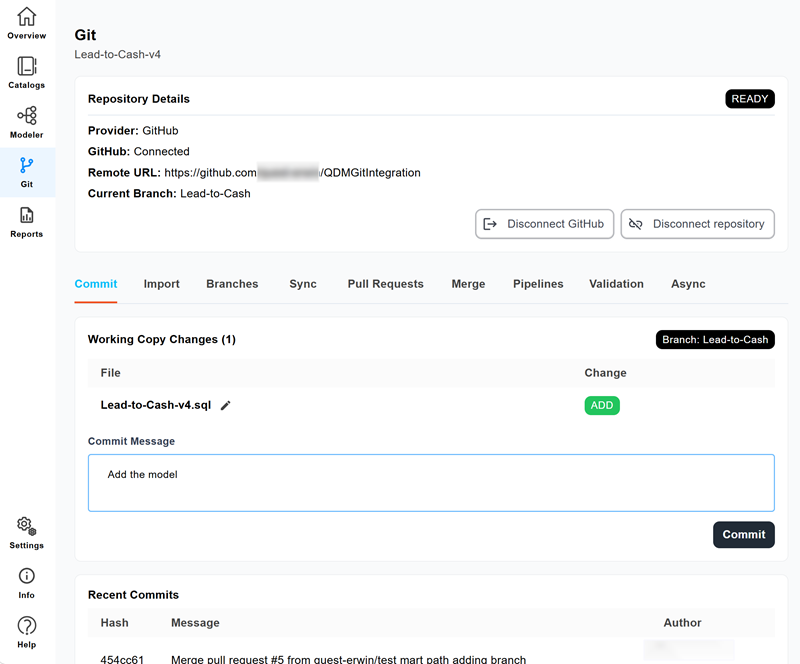
The commit is recorded and appears under Recent Commits with its commit hash, message, and author.
-
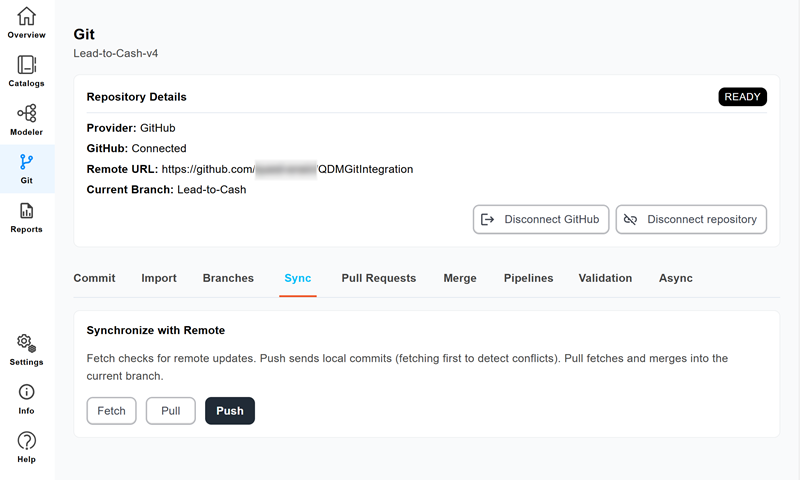
To keep your branch aligned with the remote, select the Sync tab and use one of the following options:
-
Fetch: Check for remote updates
-
Pull: Fetch and merge remote changes into the current branch
-
Push: Send your committed changes to the remote repository
-
Review and Merge Changes
-
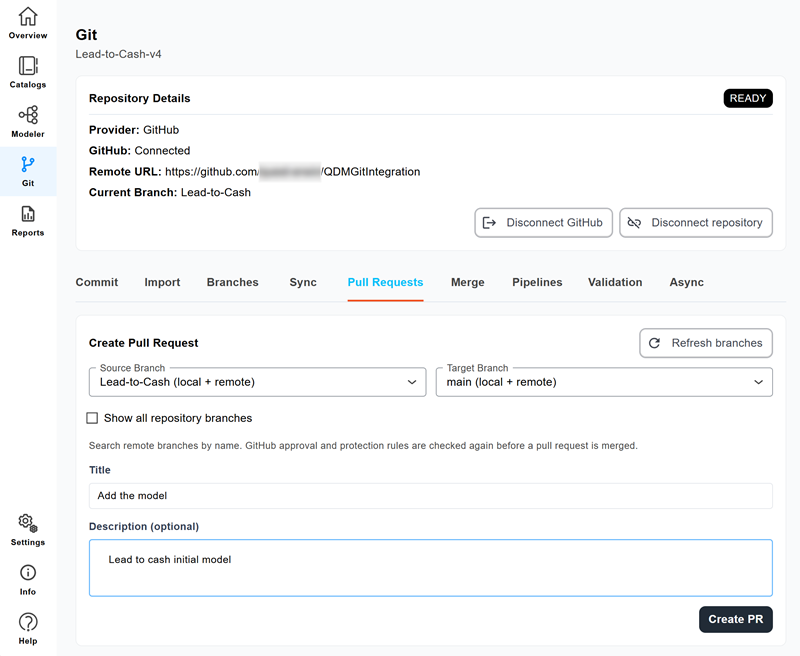
To propose your changes for review, select the Pull Requests tab.
-
Select the Source Branch and Target Branch, enter a title, and then select Create PR.
The pull request is created and its state, such as open or closed, is displayed in the list below.
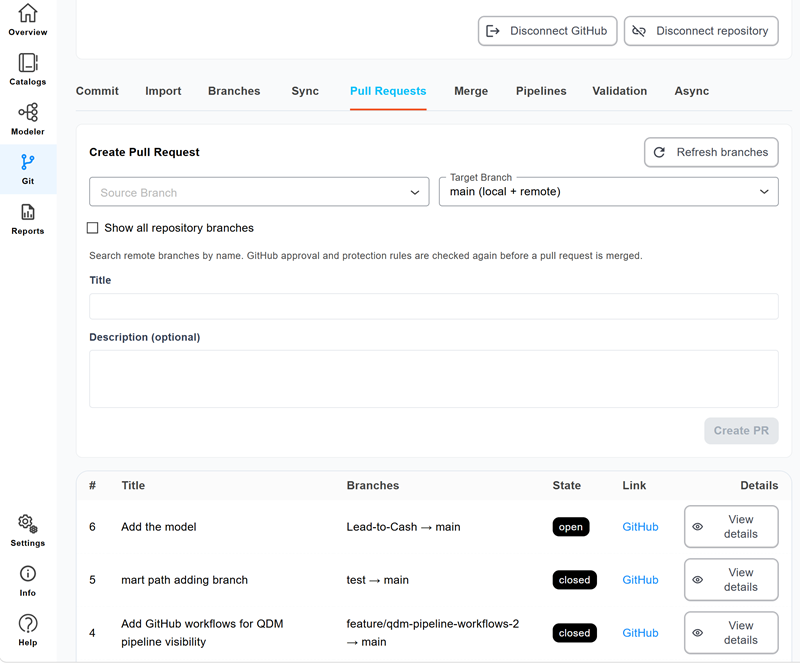
The provider's approval and protection rules are checked again before a pull request is merged.
-
To combine changes from one branch into another, select the Merge tab.
-
Select a Source Branch and Target Branch, and then select Merge.
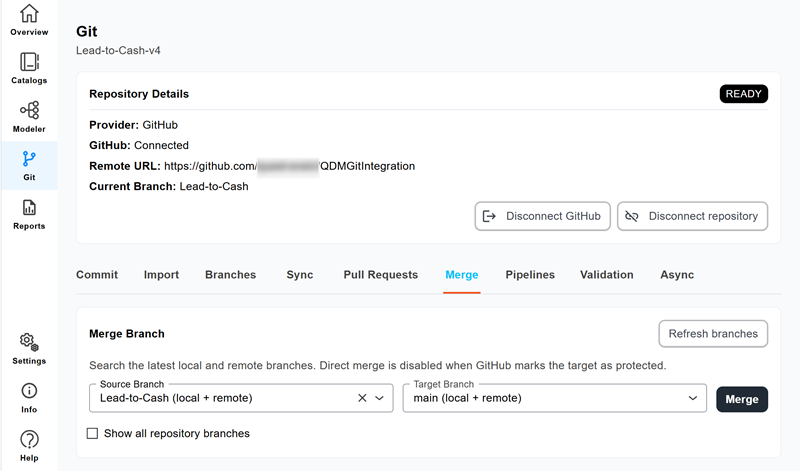
Quest Data Modeler merges the changes from the source branch into the target branch. Direct merge is disabled when GitHub marks the target as protected.
View Validation and Monitoring Gates
-
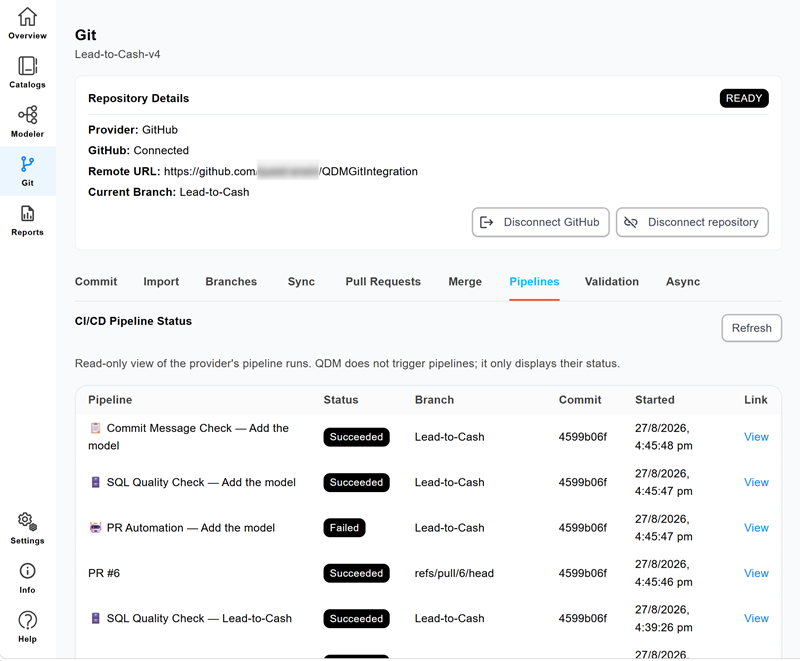
To review continuous integration status, select the Pipelines tab.
The CI/CD Pipeline Status pane displays a read-only view of the provider's pipeline runs. Quest Data Modeler does not trigger pipelines; it only displays their status.
-
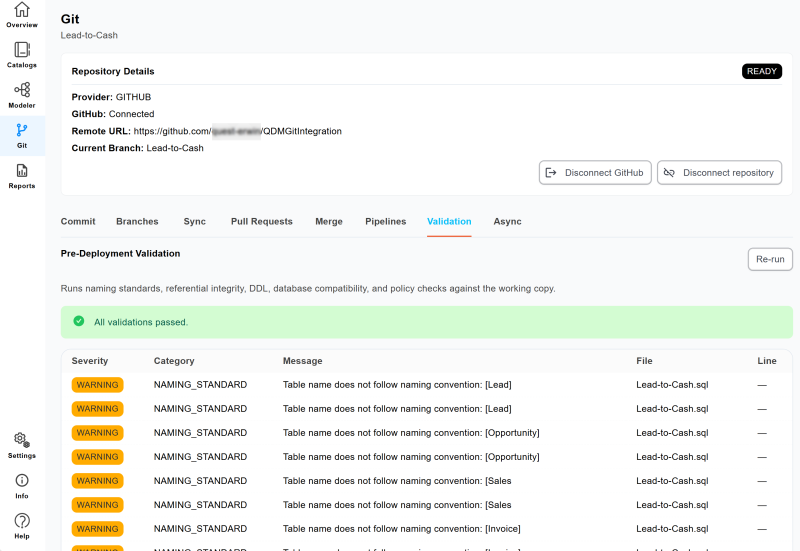
To check the model before deployment, select the Validation tab.
The Pre-Deployment Validation pane runs naming standards, referential integrity, DDL, database compatibility, and policy checks against the working copy, and lists any findings by severity, category, message, and file.
Async for Large Models
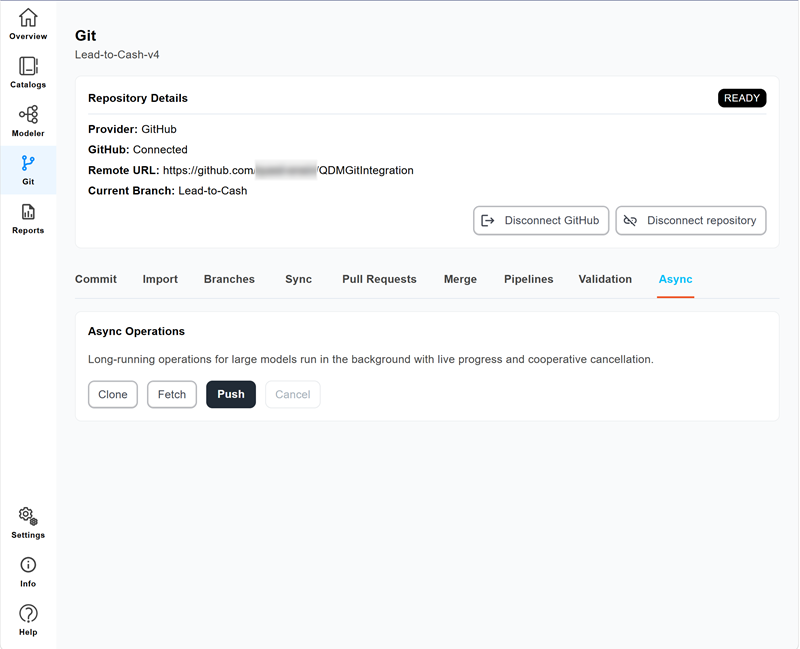
For large models, select the Async tab to run Clone, Fetch, or Push operations in the background with live progress and cooperative cancellation.
Import a Model Version from the Repository
The Import tab lets you bring a specific version of a DDL file from the repository into Quest Data Modeler, so you can recover an earlier state, review what a branch or commit contains, or open a file as a new model. You can import from any branch, tag, or commit, which makes it easy to move a reviewed version into your workspace without leaving the modeling environment.
To bring a committed DDL file into Quest Data Modeler, follow these steps:
-
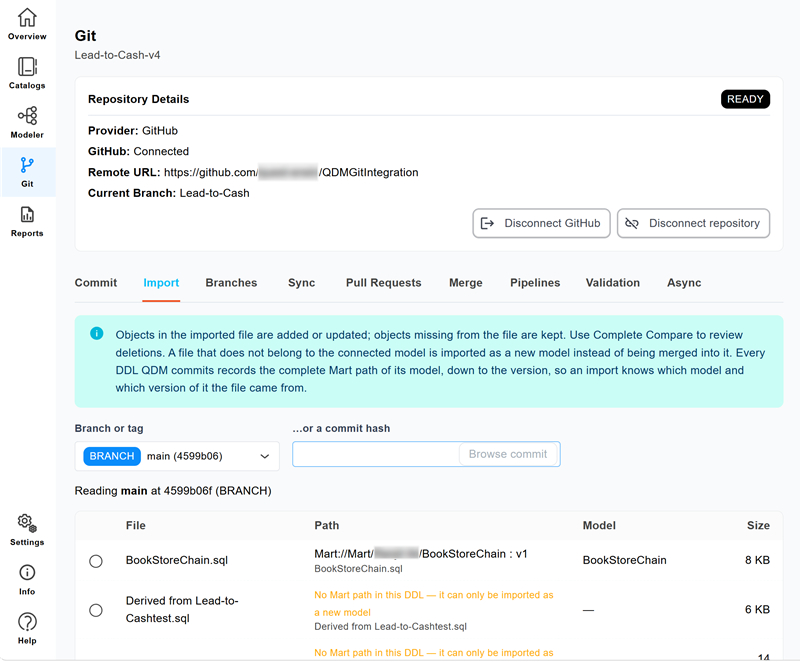
From the Git main page, select the Import tab.
-
In the Branch or tag field, select a branch or tag to read from, or enter a commit hash.
-
Select Browse commit.
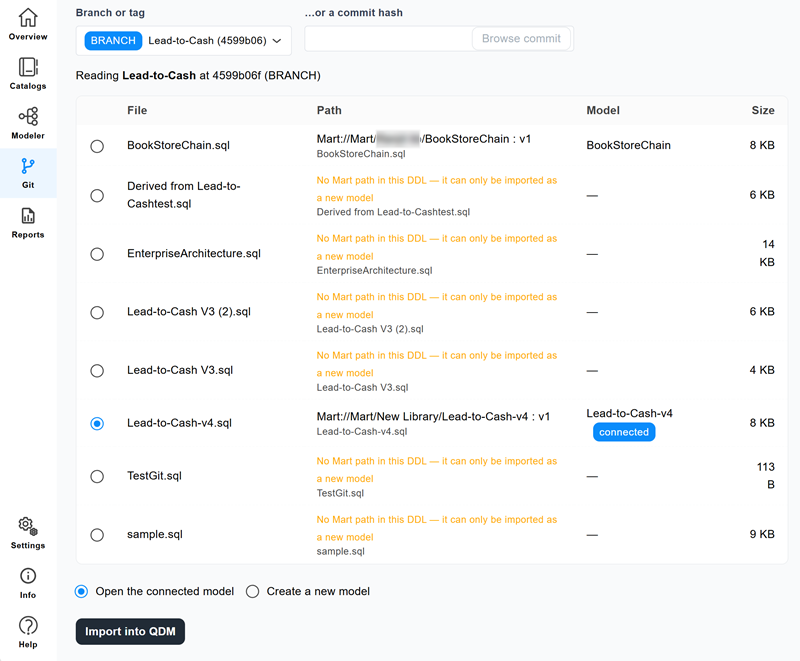
Quest Data Modeler reads the selected branch, tag, or commit and lists the available files with their path, model, and size.
-
Select the file to import from the list, and select one of the following:
-
Open the connected model: Merge the file into the current model
-
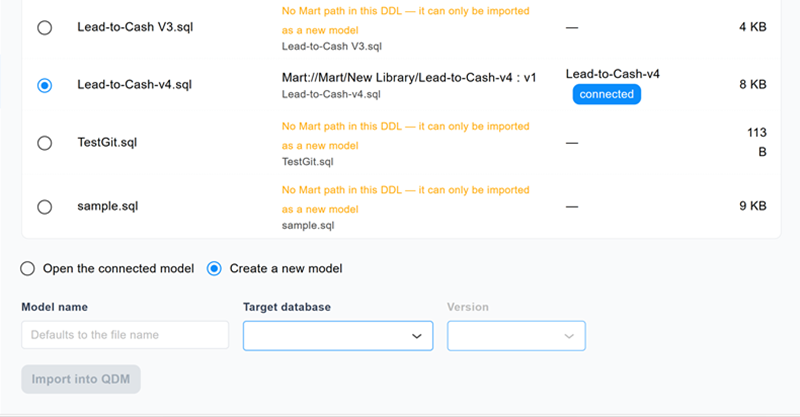
Create a new model: Use when the file carries no Mart path and its source model cannot be identified.
-
Enter a model name.
-
Select a Target database and Version.
-
-
-
Select Import into QDM.
Quest Data Modeler imports the file and opens the model. If you do not enter a model name, Quest Data Modeler uses the file name as the model name.